WooCommerce Checkout Problems: 9 Issues That Cost Orders
Learn how to troubleshoot WooCommerce checkout problems, including payment failures, slow checkout, shipping errors, plugin conflicts, and abandoned carts.
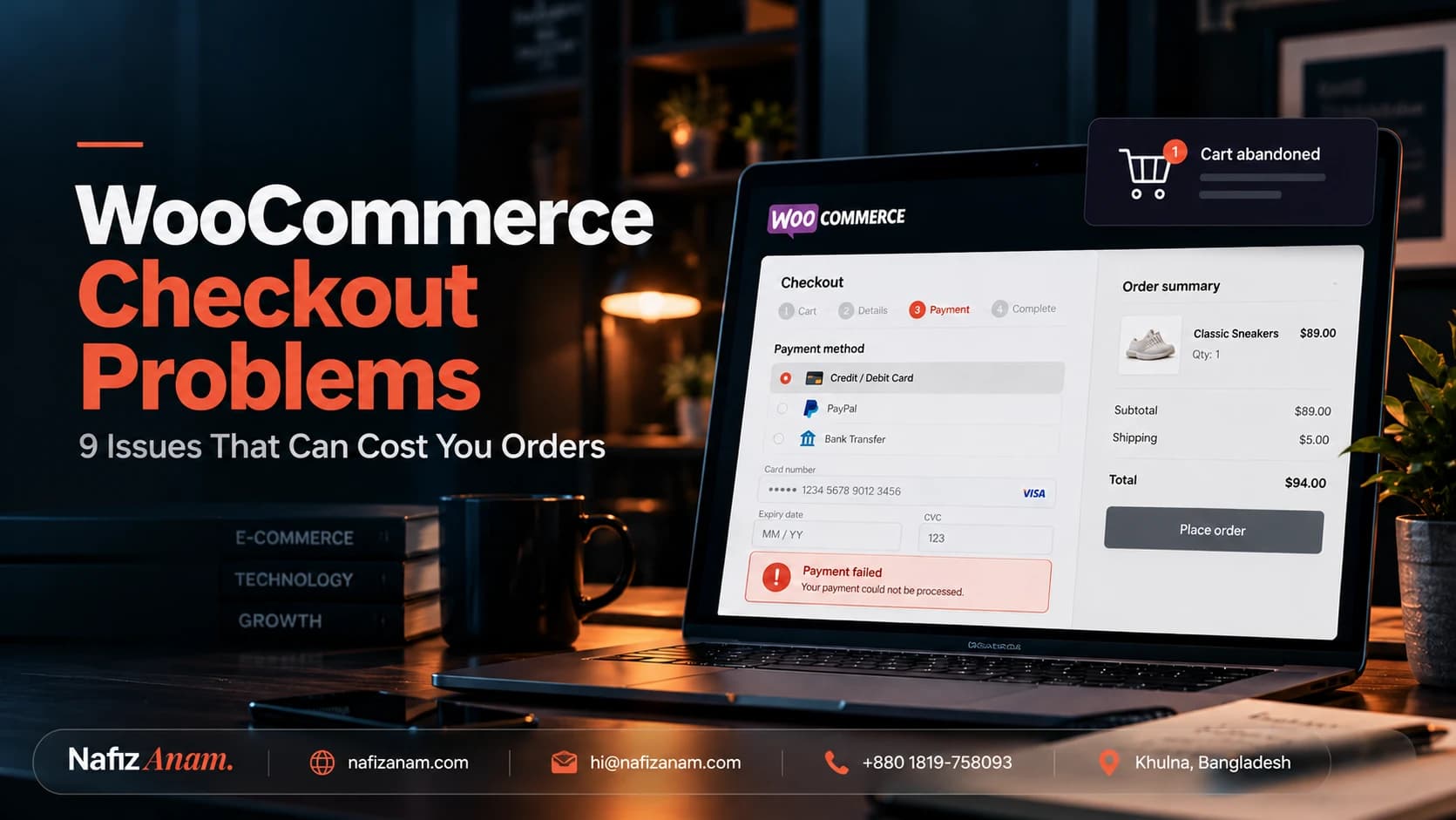
A customer finds your product, adds it to their cart, enters their details, and clicks Place order.
Then something goes wrong.
The payment fails. The shipping cost looks incorrect. The checkout page keeps loading. Or the customer leaves without completing the purchase.
For a WooCommerce store, checkout problems are particularly frustrating because they affect customers who are already close to buying. You may be paying for Google Ads or Meta Ads to bring visitors to your store, only to lose potential orders at the final step.
The hard part is that checkout failures don't always have an obvious cause. A payment gateway, shipping configuration, plugin conflict, caching rule, or JavaScript error can all contribute to the problem.
In this guide, we'll examine nine common WooCommerce checkout problems, explain what to investigate, and outline practical ways to troubleshoot them.
Why is your WooCommerce checkout not working?
WooCommerce checkout problems can originate from payment gateway configuration, incompatible plugins, theme customizations, server errors, shipping settings, caching, or frontend JavaScript issues.
The first step is to identify exactly where the checkout process fails. Does the page fail to load, does the payment get rejected, or does the order appear to fail even though the customer has been charged?
That distinction matters because each scenario requires a different investigation.
1. WooCommerce payments are failing
Payment failures are among the most urgent checkout issues because customers may be unable to complete otherwise valid orders.
Possible causes include:
Incorrect payment gateway credentials or configuration.
A payment provider rejecting the transaction.
Expired cards, insufficient funds, or bank authentication requirements.
Missing or incorrectly configured webhook endpoints.
Gateway plugin compatibility problems.
Server-side errors during payment processing.
How to troubleshoot it
Start by checking the WooCommerce order status and the payment gateway's transaction logs. If the gateway provides a test or sandbox environment, reproduce the issue there before making changes to live payments.
Review the WooCommerce logs under WooCommerce → Status → Logs, where relevant gateway and application errors may be recorded. The exact log source depends on your payment integration.
Also check whether the gateway received the payment request and whether it returned a specific error.
Do not immediately disable security controls or switch off payment validation to make a transaction succeed. Identify the underlying failure first.
Important: If a customer reports being charged but no order appears, verify the transaction with the payment provider before asking the customer to pay again.
2. The checkout page is slow
A slow checkout creates unnecessary friction at the moment a customer is ready to purchase.
The cause is not always the hosting plan. Checkout performance can also be affected by expensive database queries, third-party scripts, payment integrations, excessive plugin processing, or poorly optimized custom code.
Common warning signs include:
The checkout page takes several seconds to become usable.
Updating the shipping method triggers a long delay.
The order button remains busy after being clicked.
The page becomes noticeably slower on mobile devices.
The checkout works normally with a small cart but slows down with more products.
How to troubleshoot it
Test the checkout on both desktop and mobile. Pay attention to the time required to load the page and to complete individual actions, such as changing an address or selecting a shipping method.
Use browser developer tools to inspect network requests and JavaScript errors. If the delay occurs during a server request, investigate the corresponding backend processing, database queries, and application logs.
If the delay is concentrated around third-party scripts, examine whether every script is necessary on the checkout page.
Avoid applying aggressive caching to dynamic cart, checkout, or account pages. WooCommerce sessions and personalized checkout data must continue to work correctly.
The objective is not simply to make the homepage faster. It is to make the complete purchase process responsive.
3. Shipping costs or delivery options are incorrect
Shipping problems can prevent customers from completing an order or cause them to abandon their carts when the final delivery cost appears.
Typical issues include:
No shipping methods available for a valid address.
Unexpected shipping charges.
Incorrect delivery zones.
Free shipping not activating when expected.
Different shipping results for different product combinations.
How to troubleshoot it
Review your shipping zones, zone order, shipping methods, and the locations each method serves. Then test representative addresses from the regions where you accept orders.
Check the product settings that influence shipping calculations, including product weight, dimensions, and shipping classes where applicable.
If a shipping integration calculates rates through an external API, inspect its response and logs as well.
Test more than one scenario: a local address, a distant address, a cart with multiple products, and a cart containing products with different shipping requirements.
This helps distinguish a configuration problem from an integration failure.
4. The Place order button does nothing
A customer may click the order button repeatedly without receiving any visible response.
In some cases, the button is blocked by a JavaScript error. In others, the browser sends a request that fails, or a validation message appears outside the customer's visible area.
Potential causes include:
JavaScript errors from a theme or plugin.
Conflicts between checkout customizations and extensions.
Failed AJAX or checkout requests.
Incorrect field validation.
Security rules blocking legitimate requests.
How to troubleshoot it
Open the browser's developer tools and inspect the Console and Network tabs while reproducing the issue.
Look for failed requests, HTTP error responses, and JavaScript exceptions. Record which action triggers the failure rather than assuming that the order button itself is broken.
If the problem started after a recent update, compare the current setup with the last known working version. Test changes on a staging environment whenever possible.
Do not start by replacing the entire checkout page. First establish whether the failure originates in the frontend, backend, or an external service.
5. A plugin conflict breaks checkout
WooCommerce stores often rely on several extensions for payments, shipping, discounts, subscriptions, custom fields, and marketing integrations.
These extensions may work individually but interact unexpectedly when combined.
For example, a checkout customization may change how an address field is validated, while another extension expects the original field structure.
How to troubleshoot it
Record the exact steps required to reproduce the problem.
Review recent plugin, theme, and WordPress updates.
Back up the site and use a staging environment.
Test for conflicts using a controlled process, following WooCommerce's troubleshooting guidance.
Restore extensions incrementally and retest the same checkout scenario.
A conflict test should be performed carefully. Disabling payment, shipping or other essential plugins on a live store can interrupt real orders.
If the problem only occurs when two specific extensions are active together, document the combination and reproduce the issue before changing production code.
6. Cart contents disappear, or the session behaves unexpectedly
A customer adds products to the cart, moves to checkout and finds that the cart is empty—or the cart behaves differently between pages.
WooCommerce uses session and cookie mechanisms to maintain cart-related information. Problems can arise when caching, cookie handling, custom code, or server configuration interferes with that process.
Investigate:
Whether the issue affects logged-in customers, guest customers, or both.
Whether it occurs across different browsers.
Whether a caching or optimization rule affects cart-related requests.
Whether the problem happens after a domain, HTTPS, or cookie configuration change.
Whether custom code modifies cart or session behavior.
Test the entire journey from product page to cart to checkout, not just the cart page in isolation.
If the issue began after a caching configuration change, review the relevant exclusions and confirm that dynamic cart and checkout behavior is preserved.
7. Checkout fails after a plugin, theme, or WordPress update
A checkout that worked yesterday may fail after an update because the updated component changes an API, introduces a compatibility issue, or exposes an existing customization problem.
When troubleshooting a recently introduced failure, look at the timing of the change.
Check the versions of WordPress, WooCommerce, the active theme, payment extensions, and relevant custom code. Review error logs and reproduce the issue in staging using the same configuration.
If rolling back a component is necessary to restore service, do so through a controlled recovery process. Avoid leaving the store indefinitely on outdated software as a permanent solution.
For a busy store, a safer update process includes a recent backup, a staging test, and a post-update checkout test using the store's main payment and shipping scenarios.
8. Orders are missing, duplicated or stuck in the wrong status
Not every checkout failure means that the payment itself failed.
A payment provider may confirm a transaction while the store fails to update the corresponding order. Conversely, a customer may retry after a slow response and create a confusing sequence of payment attempts or orders.
Possible causes include webhook delivery problems, application errors, interrupted requests, or incorrect order-status handling.
How to troubleshoot it
Compare the WooCommerce order record with the payment provider's transaction history. Check timestamps, transaction identifiers, order notes, and available gateway logs.
For integrations that depend on webhooks, verify that the endpoint is reachable and that the provider is delivering events successfully.
Avoid manually changing order statuses without first confirming the actual payment state. A status change alone does not resolve a failed synchronization process.
If you operate a store with external inventory, accounting, or fulfillment integrations, verify that order updates are reaching those systems as expected.
9. Analytics reports sales differently from WooCommerce
Sometimes the checkout is functioning, but the store owner believes something is broken because WooCommerce, Google Analytics 4, and Meta Ads report different purchase totals.
These systems do not necessarily measure purchases in the same way. Differences may result from attribution windows, consent settings, blocked browser requests, duplicate or missing purchase events, reporting time zones, and differences between platform reporting methods.
This matters because an apparently healthy checkout can still have a measurement problem that makes campaign performance difficult to evaluate.
How to troubleshoot it
Start with actual WooCommerce orders and payment records as your operational reference. Then investigate how purchase events are sent to GA4 and advertising platforms.
Check whether the purchase event fires at the correct stage, whether its transaction or order identifier is stable, and whether duplicate events are being sent.
Use the available debugging tools for each platform to verify event delivery. Review consent behavior and server-side integrations if your setup uses them.
Do not assume that forcing every analytics platform to report exactly the same number will solve the issue. First determine which differences are expected and which indicate an implementation defect.
A practical WooCommerce checkout testing checklist
Before concluding that a checkout problem is fixed, test the full customer journey.
A customer can add a product to the cart.
Cart quantities and totals update correctly.
Shipping methods and costs match the test address.
Required checkout fields validate correctly.
Available payment methods load and behave as expected.
A successful test payment creates the correct order.
A failed payment produces an understandable response.
Order status and payment records remain consistent.
Purchase tracking fires correctly without unintended duplicates.
The process works on mobile and desktop.
Cart and checkout behavior remains correct with the site's caching configuration.
Relevant logs do not show unresolved errors during testing.
Run these checks in a safe test environment where possible. If a live transaction is necessary, use a controlled procedure that avoids charging a real customer unintentionally.
When should you get professional WooCommerce engineering help?
Routine configuration problems can often be resolved without a major development project. More complex failures need a structured technical investigation.
Consider bringing in a WooCommerce engineer when:
Checkout errors persist despite basic troubleshooting.
Several plugins or custom integrations interact with one another.
Payment, shipping, or inventory synchronization is unreliable.
Checkout performance deteriorates as order volume or catalog complexity grows.
Updates repeatedly introduce production issues.
You cannot confidently verify whether checkout and purchase tracking are working correctly.
Checkout is often just the most visible symptom — if performance, plugin conflicts, or rising hosting costs are creeping up across the rest of the store too, it's worth reading about the hidden technical costs of a growing WooCommerce store as well.
The priority is to identify the root cause, assess the risk to live orders, and implement a fix that can be tested and maintained.
Repeatedly installing another plugin or applying isolated fixes can make the underlying problem harder to diagnose.
Final thoughts
Your WooCommerce checkout is more than the last page of your website. It connects your product catalog, customer information, shipping rules, payment provider, order management, and analytics.
When one of those components fails, the symptoms can look similar even when the causes are completely different.
Start by reproducing the problem, collecting evidence, and identifying the failing step. Then test the fix against the complete purchase journey—not just the page that appeared broken.
If your store has persistent checkout issues, slow purchase flows, or unreliable integrations, a focused technical review can help you establish what is failing and what should be fixed first.
Need help with a WooCommerce store?
I help growing businesses improve ecommerce functionality, troubleshoot complex technical issues, and build more reliable online stores.
Explore Ecommerce Engineering Services
Book a free 30-minute technical review
Frequently asked questions
Why is my WooCommerce checkout not working?
Common causes include payment gateway errors, plugin conflicts, JavaScript failures, shipping configuration problems, session issues, and server-side errors. Identify the exact step that fails before changing the configuration.
Why are WooCommerce payments failing?
Payment failures can result from gateway configuration, bank declines, authentication requirements, provider errors, or integration problems. Check the gateway transaction details and relevant WooCommerce logs to identify the cause.
How do I fix a slow WooCommerce checkout?
Measure the checkout journey, inspect browser network requests and JavaScript errors, and investigate slow server responses or unnecessary third-party scripts. Test changes in staging and preserve correct cart and checkout behavior.
Can a WooCommerce plugin conflict affect checkout?
Yes. Extensions can interact through shared hooks, scripts, checkout fields, and payment or shipping processes. Reproduce the issue and conduct controlled conflict testing in a staging environment.
How can I test WooCommerce checkout safely?
Use a staging site and the payment provider's test mode where supported. Test successful and failed payments, shipping calculations, order creation, and purchase tracking before deploying changes to production.
Why do WooCommerce and Google Analytics show different sales numbers?
They measure and report data differently. Attribution, consent, event delivery, duplicate purchase events, time zones, and reporting methods can all contribute to discrepancies. Verify actual orders separately from analytics and advertising reports.
Need help with your WooCommerce store?
I work with startups and growing businesses on ecommerce engineering, WooCommerce development, performance optimization, analytics, tracking infrastructure, and custom software systems.
If your store is growing but you're starting to see performance, tracking, integration, or technical complexity issues, I can help you identify what actually needs fixing before you invest in a complete rebuild. Explore my Ecommerce Engineering, Tracking & Analytics, and Cloud Infrastructure & DevOps services, or see the full list on my services page.
Continue reading
Work Together
Facing something similar in your product?
I help founders and technical teams design, build, and scale software products the right way. Let's talk about your specific challenges.